

Get Trip.com reviews into Power BI.
One endpoint call, the Power BI setup steps, and a field-to-column map. Then keep it refreshing on a schedule.
Trusted by hospitality teams at





One source, one destination.
Trip.com
Trip.com reviews skew toward Chinese and APAC travelers, a segment most Western OTAs underrepresent. Below, that review stream lands in Power BI row by row.
Power BI
Power BI talks to REST APIs natively through Power Query. No connector to install: the Web source plus one request header gets the JSON in, and scheduled refresh keeps it current. In this guide it reads Trip.com reviews straight from the StayAPI endpoint.
One endpoint returns Trip.com reviews.
The Trip.com Hotel Reviews endpoint returns clean JSON for one hotel. Send your key in the X-API-Key header. See the
endpoint docs for every parameter.
Wire Power BI to the endpoint.
-
01
Create a StayAPI account and copy your API key from the dashboard.
-
02
In Power BI Desktop, choose Get Data > Web > Advanced.
-
03
Enter the endpoint URL and add an x-api-key request header.
-
04
Expand the JSON in Power Query, load it, and set a scheduled refresh in the service.
Power Query: one M expression.
This uses the real endpoint URL with the example hotel id. Swap in your hotel id and your API key.
let
  Source = Json.Document(
    Web.Contents(
      "https://api.stayapi.com/v1/tripcom/hotel/reviews/702258",
      [ Headers = [ #"x-api-key" = "YOUR_API_KEY" ] ]
    )
  ),
  Records = Source[data][reviews],
  Table   = Table.FromList(Records, Splitter.SplitByNothing()),
  Expanded = Table.ExpandRecordColumn(
    Table, "Column1", { "id", "rating", "title", "text" }
  )
in
  Expanded
50 free requests on signup, no card.
Response fields to columns.
Each field from the Trip.com Hotel Reviews response, and a suggested column name.
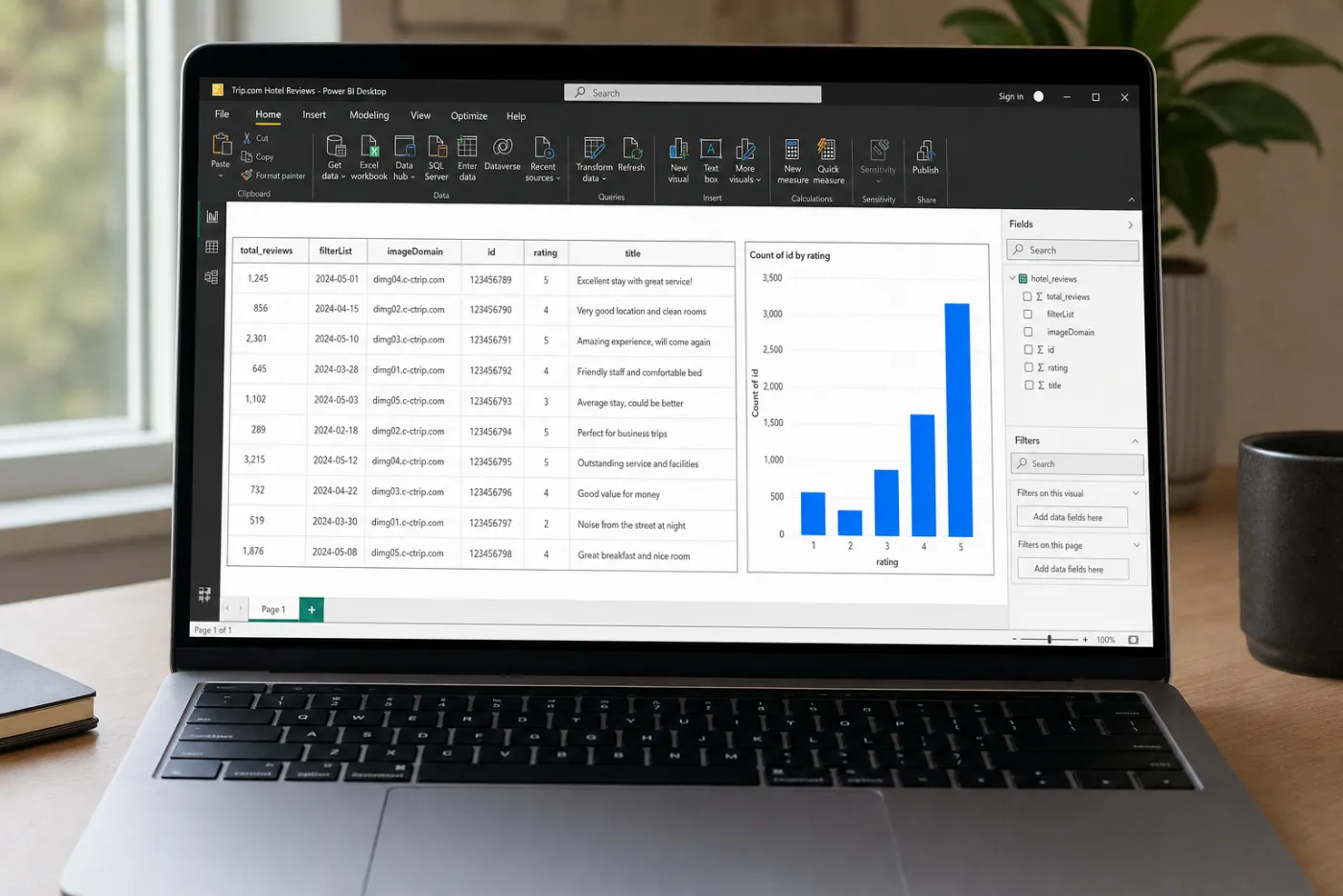
What it looks like in Power BI.
The fields from the mapping above land as columns: hotel_id, total_reviews, id, rating. Refreshed on the schedule you set.
The columns you get
Every row is one hotel record from the Trip.com Hotel Reviews response. These fields become columns:
- hotel_id
- total_reviews
- id
- rating
- title
- text
More Trip.com pipelines.
Get your key.
Sign up, copy your key into the snippet above, and pull live Trip.com reviews into Power BI.
Try it free
50 free requests on signup. Fastest way to see if the schema fits.
Start freeTalk through your pipeline
15 minutes. Volume, endpoint mix, and where the data lands. Walk out with a quote.
Book a demo